
2026-06-26
Roblox Clothing Upload Checklist
Prepare classic Roblox clothing files with the correct canvas, template regions, project backups, and upload checks.
Player goal
Export a classic shirt or pants PNG that lines up on an avatar and is easy to revise after moderation or player feedback.
- Open the clothing tool and pick shirt, pants, or full clothing workflow.
- Design on the 585 x 559 classic clothing canvas with template guides visible.
- Check torso, arm, and leg regions for alignment and symmetry.
- Hide guide overlays before final PNG export.
- Save project JSON before uploading the PNG to Roblox.
Use the exact classic clothing canvas
Classic Roblox shirts and pants use a flat template layout. Roblox Maker starts from the 585 x 559 canvas used for classic clothing workflows, then lets you place images, text, shapes, and color blocks while guide overlays show where body regions wrap on the avatar.
The most common beginner mistake is making a file with correct dimensions but poor region placement. A logo that looks centered on the flat image can sit too high on the avatar chest, and sleeve designs can look mismatched if the left and right regions are not checked together.
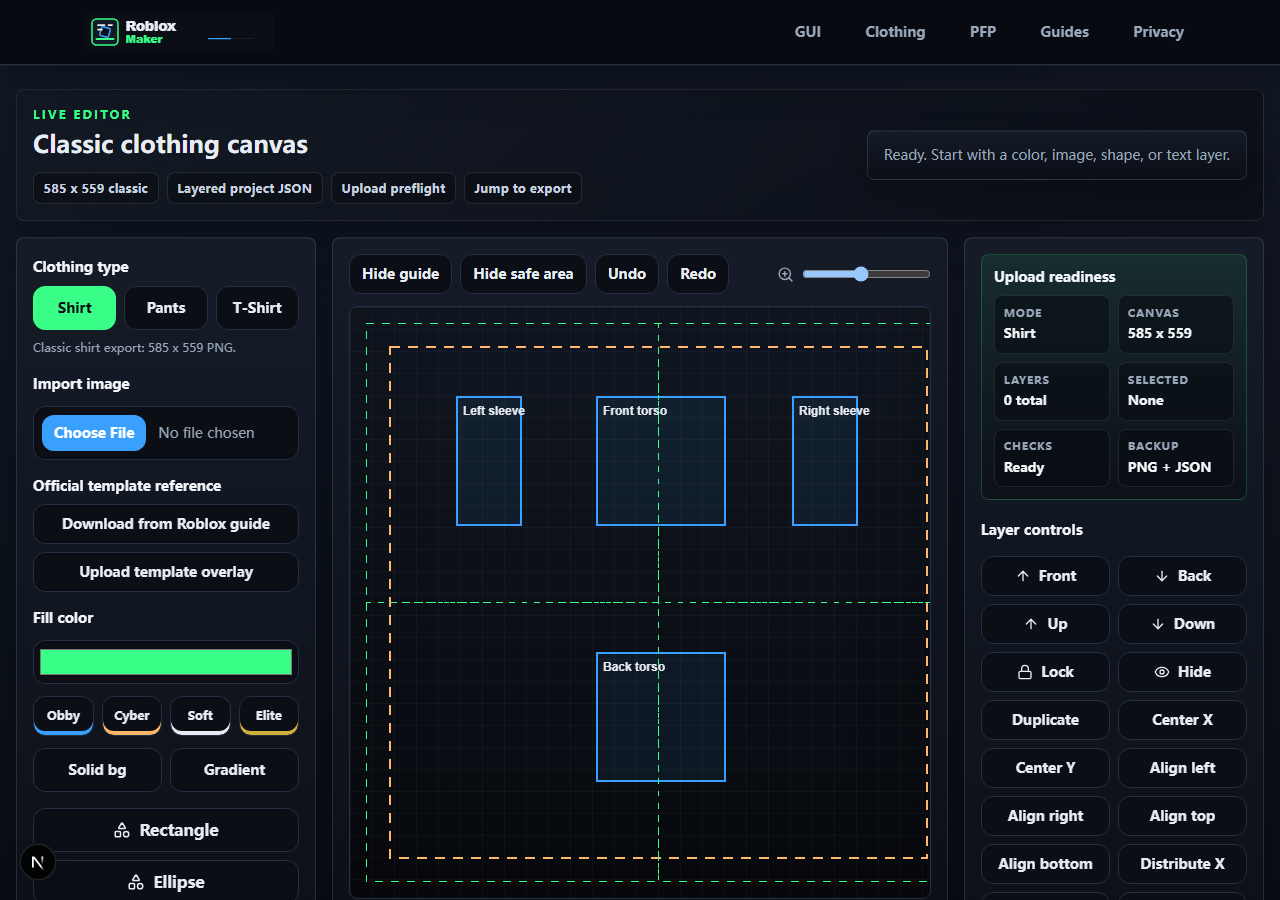
- Canvas is 585 x 559
- Torso front has the main readable design
- Sleeves and legs are checked as pairs
- No template guide lines in the final PNG
Think about how players actually see clothing
Players rarely inspect the flat texture. They see the outfit on a moving avatar, in a lobby, on a profile, or in a marketplace thumbnail. Strong color blocking, recognizable front shapes, and clean contrast usually matter more than tiny texture details.
Use Roblox Maker project JSON as your source file. If moderation asks for a change, or if you want a matching recolor, the JSON keeps your layers editable. The exported PNG is the delivery file, not the only copy you should keep.
- Design still reads at small avatar size
- Palette is consistent across shirt and pants
- Project JSON saved before PNG export
- Filename clearly identifies version and item type
Before upload, check policy and ownership
Roblox Maker can prepare files, but it cannot approve marketplace uploads. Before spending upload fees or listing an item, check Roblox Creator Dashboard requirements, moderation rules, and intellectual property ownership.
From a player-trust point of view, avoid copied logos, misleading brand marks, and assets you do not have rights to use. Clean original clothing looks better and is less likely to disappear after players buy or favorite it.
- Artwork is original or properly licensed
- No hidden guide layer or watermark unless intentional
- Upload PNG and editable JSON are both backed up
- Current Roblox upload and marketplace rules checked
References and next step
Share this guide
Copy the canonical link for Discord or share it directly on social platforms.