
2026-06-26
Roblox Avatar Render Composition Tips
Frame a full-body Roblox avatar render with readable silhouette, clean background contrast, and export choices that work on social cards.
Player goal
Make a full-body Roblox avatar render that shows the outfit clearly without feeling cramped or muddy.
- Load a Roblox username image or upload a full-body render.
- Keep head, feet, and accessories inside the safe area.
- Choose a background that supports the avatar silhouette.
- Use frame and glow only when they improve readability.
- Export PNG after checking the small preview.
Give the avatar room to breathe
A full-body render is judged by silhouette first. Players notice the outfit shape, pose, accessories, and color contrast before reading any caption. Keep a little space above the head and below the feet so the render feels intentional instead of cropped by accident.
In Roblox Maker, use the transform controls to scale the avatar until the outfit is readable but not squeezed. If the render is for a group card, keep the body centered. If it is for a social banner, leave space for text without placing text over the face.
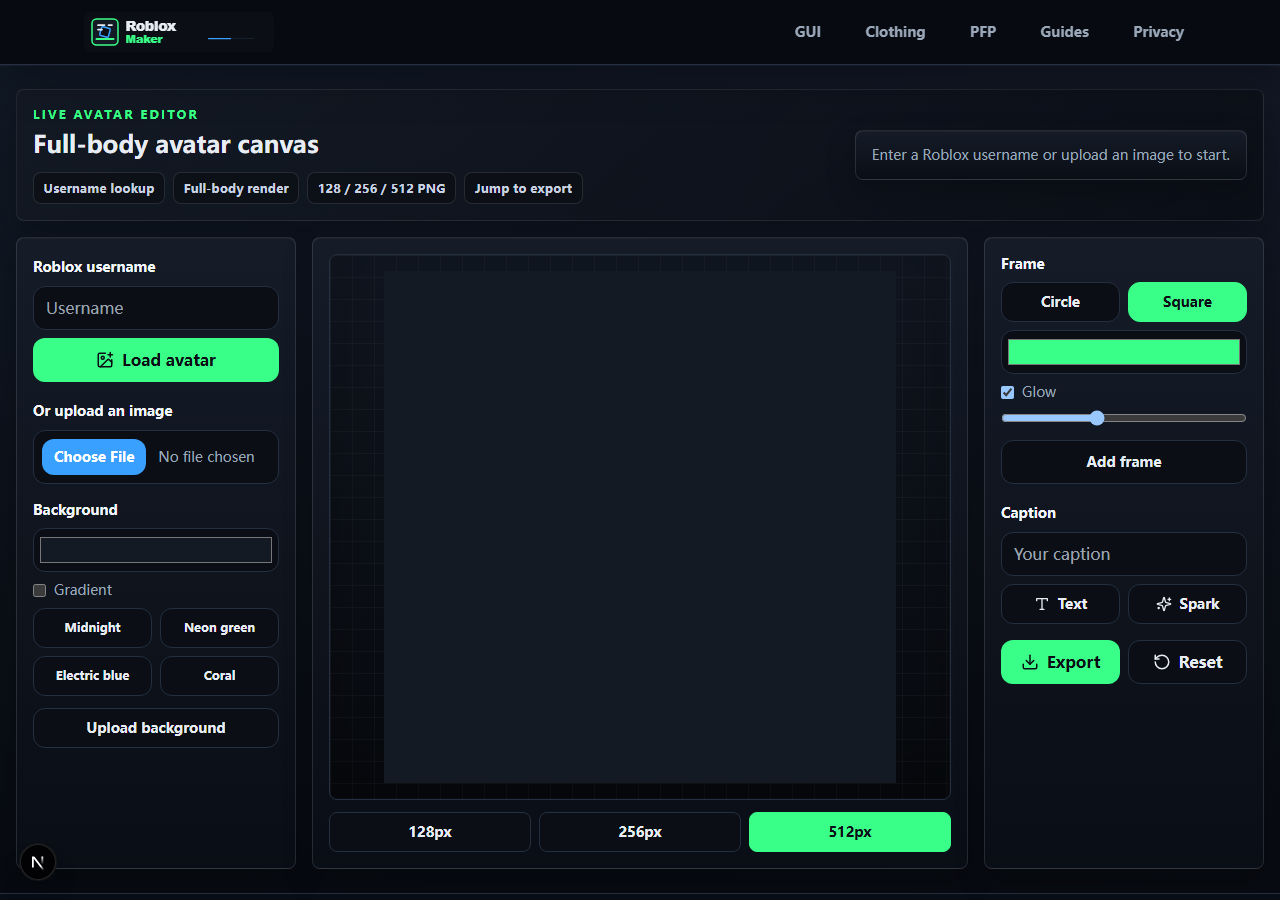
- Head and feet are not cropped
- Accessories remain visible
- Background does not compete with the outfit
- Caption avoids the face and main silhouette
Use contrast instead of clutter
Busy backgrounds make avatar renders harder to read, especially when the outfit has dark accessories or small details. A simple color, soft gradient, or lightly textured backdrop usually looks more polished than a detailed scene behind the character.
From a player perspective, the avatar should feel like the star. Glow, outline, and frame effects should separate the body from the background. If an effect becomes the first thing you notice, reduce it.
- Avatar readable at 128 px
- Background value differs from outfit value
- Glow is subtle enough to keep accessories clear
- Frame matches the use case: card, profile, or post
Know what the tool is and is not
Roblox Maker Avatar Maker is a render editor. It is not a Roblox inventory editor, avatar try-on system, or marketplace replacement. That keeps the workflow simple: get a public thumbnail or upload an image, compose it, then export a PNG.
This honesty matters. Players can use the output for group art, social posts, thumbnails, or profile-style images without expecting the editor to change their actual Roblox avatar.
- Use Roblox Studio or Roblox avatar editor for actual avatar changes
- Use Roblox Maker for composition and PNG export
- Keep source image rights clear
- Save final PNG in the size needed for the destination
References and next step
Share this guide
Copy the canonical link for Discord or share it directly on social platforms.